SWYPIN:
Android application to swipe-select 4-digit PIN for smartphone authentication
~PHASE I~
Objective:
The 4-digit PIN authentication is pretty ubiquitous and can be seen as the preferred mechanism for authentication especially in ATMs and smartphones. The difference between them is that smartphones offer a much richer touchpad than the buttons of an ATM machine, and we have not yet tried to exploit it to improve the user experience.
Video:
Paper:
Swypin: Using swipe-select to enter 4-digit PIN for Authentication in a Smartphone – Aditi Phatak
Duration:
10 Weeks (Sept – Nov 2016)
Solution Space:
We devised a solution space to situate our technique in relation to previous non-biometric authentication interactions, suggest connections between techniques, and direct attention to relatively under-explored combinations.
The rows indicate the authentication categories. The columns delineate the input strategy: Keyboard-based Input vs Swipe Action.
| Keyboard-Based Input | Swipe Action | |
| Alphanumeric | ✓ | ✓ |
| 4-Digit Pin | ✓ | Proposed |
| Gesture/Pattern | ✗ | ✓ |
The Design:
Initial Design Process:

Initially, the project faced a lot of design considerations:
- Would it have gesture recognition?
- What kind of design would be ergonomically ideal for swiping over any 4 of the 10 digits available to choose from?
- How would the user enter the same number multiple times?
- How would the problem of swiping over the wrong number while trying to get to the one you want, be handled?
A lot of time was spent brainstorming possible designs (a few of which you can see above).
To solve the problem of layout design we created a low-fi prototype and tried using it in a bunch of different ways to try to identify what worked and what did not.
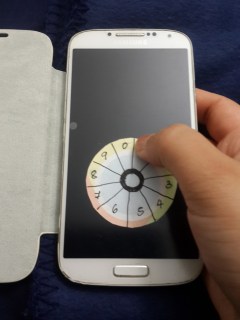

From that experience we narrowed down the scope of our project to the following:
- We would not implement gesture recognition because in that case, the password is only as strong as the gesture and highly susceptible to over-the-shoulder surfing.
- We would need to have some space in the center for the user to be able to traverse to a number without accidentally swiping over another number.
Final Design:

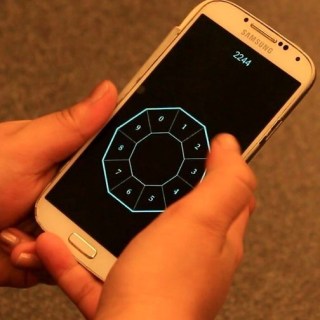
The proposed technique for Swypin involves a dial design with a gap in the center with number 0-9 written around the edge of the dial. The user can swipe over multiple numbers to input the 4-Digit PIN.
Alternatively, the user can also move their finger over the center of the dial to avoid touching a number that might be in the line of motion to reach the intended number.
The user can also move to the center from the number to allow re-entering the same number again.
This design allows users to have the least hindrance in swiping from one number to another number. This concept is an effective one because users can remember their passwords as a gesture as opposed to a number. This technique exploits the best of pattern recognition along with the security and memorability of a 4-Digit PIN.
System Analysis:
For the purposes of this study, we designed an application that would employ Swypin as well as an implementation of the traditional 4-Digit PIN button-based input mechanism.

Figure 4: On the left, we have the traditional button-based PIN input mechanism and on the right, we have Swypin implemented as a stand-alone application.
The application was designed to capture the time taken, in nanoseconds, to begin and complete one PIN input on any of the methods.
For the purposes of the study, we used 10 people in the age range 20-37 (Median: 21, 3F/7M).
We asked them to perform the following tasks: a)Enter the PIN 1234 on Swypin a total of 10 times b) Enter the PIN 6348 on Swypin a total of 10 times c) Enter the PIN 1234 on Tap a total of 10 times d) Enter the PIN 6348 on Tap a total of 10 times.
We employed these 2 PIN in particular as they differ in the complexity of input with ‘6348’ being relatively difficult to input on both the methods and ‘1234’ is the most common of all 4-Digit PIN passwords.
Design
The experiment consisted of 2 phases. In the first phase, participants worked with Swypin and entered 2 passwords 10 times each. In the second phase, participants worked with Tap and entered 2 passwords 10 times each. This was performed for 10 participants. This gave us a factorial design of 400 (10 Participants x 2 PINs x 10 Attempts x 2 Systems).
The participants were explained what Swypin was with one quick demonstration on how one might use it. However, the first time they tried it themselves was during the testing, unlike the Tap method which people are largely familiar with already. The participants were encouraged to perform the tasks as quickly as possible and in quick successions.
The application logged the time taken to perform the input of 1 PIN on each of the systems in nanoseconds.
Results and Discussion
For each of the tasks, we analyzed the data in terms of Attempt Number on X-Axis and the time taken in nanoseconds on the Y-Axis.
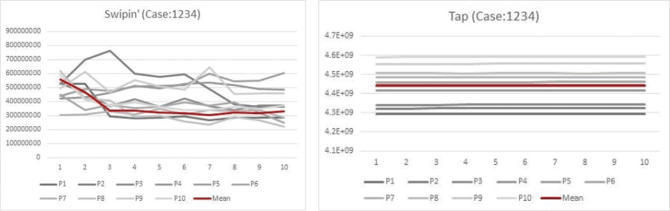
Swypin Case:1234 shows that the mean time taken for entering the password declines with the number of attempts. The average time taken by participants dropped by a factor of 2 by the third attempt and stayed there in a more or less linear way through the rest of the study. Tap Case:1234 shows that the mean time taken for entering the password declines with the number of attempts. The average time taken remained more or less constant at around 4443 milliseconds.
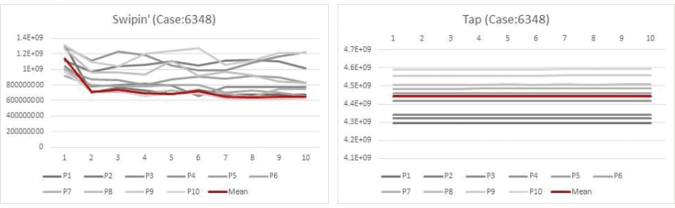
Swypin Case:6348 shows that the mean time taken for entering the password declines with the number of attempts. The average time taken dropped by a factor of ~1.5 as early as the second attempt and then maintained that time for the rest of the study. Tap Case:6348 shows that the mean time taken for entering the password declines with the number of attempts. The average time remained more or less constant throughout the study at around 4445 milliseconds which was less than the average time for Tap Case:1234 by 3 milliseconds.

Comparison between Swypin and Tap input times in milliseconds clearly demonstrates that Swypin is faster than Tap by a factor of 9 for contiguous input like 1234 and a factor of 5 for a more complicated input like 6348.
On evaluating and comparing the two methods, the following is clear:
- Swypin has the potential to be an acquired skill where the number of attempts for getting better input time can be as low as 2 or 3, following which one might expect to more or less reach the best speed they will acquire for a particular input.
- The Tap method does not improve on input time with the number of attempts.
- Swypin is clearly fast and easy to pick up on.
- Swypin is definitely faster than Tap method.
User Study:
Participants & Procedure
The study took 10 participants from the previous study after they had performed the tasks for a quick survey. The participants were given as much time as they desired to fill out the survey.
The survey asked the participants to grade the following on a scale of 1 to 5 (1 being least favorable):
- Ease of Use
- Design
- Would you use this?
- Do you prefer this over traditional unlock screen?
The survey also asked users the subjective questions:
- What do you like the most about Swypin?
- What do you like the least about Swypin?
Results and Discussion
The users gave very positive responses to the rating questions with at least a mean of 4 for each and a mean of 5 for the question “Would you use this?” This response encourages us to believe that Swypin is a successful design for 4-Digit PIN-based smartphone unlocking.

User Ratings for Swypin show very favorable responses with at least a median of 4/5 for all parameters and 5/5 for the question “Would you use this?”
The users mentioned the words “fast”, “easy”, “efficient” and “fun” to answer the question “What do you like the most about Swipin?”. Users mentioned that they “liked to swipe” and that they “did not have to lift their finger” while answering the above question. One user said that “it is easy if your code numbers are in a row (1,2,3,4) but hard otherwise”. Another user said of the system that “It becomes easier to memorize the password”. Another user said that they liked the design of the Swypin UI.
While answering the question “What do you like the least about Swypin?” the user mentioned that it was harder to enter the numbers which were “all over the place”. Two users expressed doubts about whether it was better than the 3×3 grid and said that they would prefer Fingerprint Recognition over anything else. One user expressed concern saying that “the traditional keyboard layout is more intuitive”.
Conclusion:
Swypin is a successful design in term of speed, efficiency, and user reviews. The System Analysis demonstrates that the speed of input increases as the user makes more attempts at the input with significant improvement as early as the second or third attempt. On the other hand, Tap method does not hold a lot of scope for input speed improvement.
The User study demonstrated that the user opinions of Swypin are highly favorable and very encouraging for future work to be performed to improve the design aspects of Swypin.
The users also collaborated with our initial hypotheses that swipe input is favorable to tap input. It also collaborates with the hypotheses that Swypin would help with memorability of the password.
~PHASE II~
Objectives:
- Performing usability testing and usability evaluation with different versions of the unlocking interface.
- Incorporating gesture recognition into the recognition algorithm for faster access time.
Design Improvement:
Users explicitly mentioned that while they liked the overall idea of Swypin, they wondered if the design itself could be improved upon. Further work needs to be put in towards conducting an analysis of number arrangements and the look and feel of the dial.
From the implementation perspective, the current system classifies coordinates in absolute pixel coordinates. For the system to be made portable to all devices, the algorithm would have to consider the relative pixel coordinates instead.
One of the users mentioned that the center area of the design seemed to be wasted, whereas the center is currently being used to classify touch input for in-between number movement and for re-entering the same number multiple times. But this question does open up the possibilities of perhaps detecting taps, etc. in the center space as an additional interaction for the purpose of adding another layer to the password or as a gesture to perform a task.
Design Considerations:
- There needs to be a neutral space where the finger can move to for entering repeat numbers. This gives us two opportunities: to have it either inside or outside the area with the numbers. We also want the gesture size to be as small as possible while avoiding the fat finger problem. We also want to find what form factor works in terms of the size of the dial and/or the center. So on that basis, we could test our basic design (the one you see above) to create a grid of designs with:
- The center, varying as radius = 0, (Radius of dial x 1/3) and (Radius of dial x 1/2).
- Similarly, having 3-4 sizes of the dial itself.
- Testing the ones with r=0 for outside-circle neutralizing finger movement and the others for inside-circle movement and testing speed and preference.
The Designs:


Design 1 Design 2 Design 3
User Study:
Participants & Procedure:
The study tested 3 designs for entering passwords: 1234, 2244, 6348. For this purpose, we used 30 participants and had each participant enter each of the 3 passwords 10 times across all 3 designs. We changed the order in which the participants were introduced to the design for every 5 participants, and were able to iterate for all combinations of 3 designs over the course of 30 participants.
Proof of Concept:

Android Application for password recognition based on Swypin Design 3, demonstrating identifying multiple number combinations/passwords.
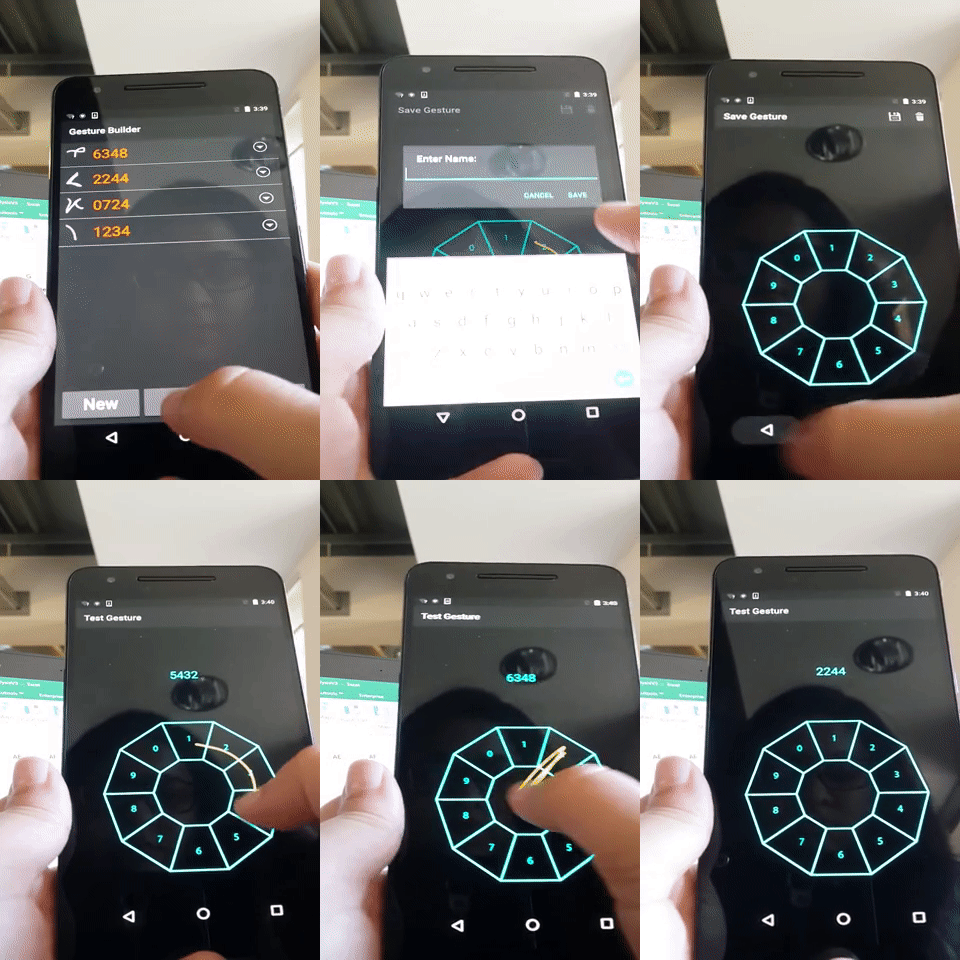
Android Application demonstrating gesture recognition based on existing saved gestures, and also demonstrating the process of adding a new gesture to the list of saved gestures.
Data and Analysis:
Swypin Phase2 – Data and Analysis – Excel File
Results:


Gesture Recognition:
Part 2 of Phase 2 aimed to add a weighted gesture recognition algorithm. For this purpose, I used Google’s gesture recognition library. The main challenges faced were:
- Making the gesture algorithm correctly recognize gestures.
- Fine tuning prediction score for accepting a gesture as correctly recognized since the general rule of 1.0 score was too liberal.
- Disregarding correct gestures but in a different orientation.
The gesture recognition worked great but was not fast enough. Optimizing the recognition went into the realms of making the recognition algorithm itself more efficient. It was no longer suitable for phone unlock since adding the gesture recognition dramatically reduced the access time making the entire design deficient.
Presentation/Deliverable:
Swypin Phase 2 Powerpoint Presentation